

Struggling with slow internet or confused about cables, routers, and blinking lights? You’re not alone. Many people search for how to set up WiFi at home because they want a fast, stable connection without depending on technicians or complicated instructions. In fact, millions of first-time users and new homeowners look up WiFi setup guides every month as work-from-home, online learning, and streaming continue to grow.
The problem is that most setup guides feel too technical, leaving you unsure whether you’ve connected things correctly or if your WiFi is even secure. I’ve faced this myself. The first time I tried setting up WiFi at home, I thought everything was done… until half the house had no signal. A few simple steps and placement changes made all the difference, and the connection worked perfectly.
The good news? Setting up WiFi at home is actually simple when you know the right steps. In this guide, you’ll learn exactly how to set up WiFi at home, from connecting your router to choosing the best placement and securing your network quickly and confidently.
Let’s walk through it step by step so you can get connected without stress and if you’re ready, let’s start with what you need before setting up your home WiFi.
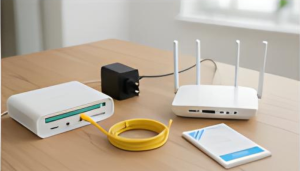
Before you start setting up WiFi at home, it helps to have everything ready. The good news is you don’t need a lot of equipment, just a few basic items that work together to get you online smoothly.
The first thing you need is an active internet connection from an internet service provider. This can be broadband or fiber, depending on what’s available in your area. Fiber connections are faster and more stable, making them ideal for streaming, work-from-home, and multiple devices. Broadband works well for basic usage and smaller households. Make sure your connection is activated before moving to the next step.
A modem connects your home to the internet line provided by your ISP, while the WiFi router distributes that internet wirelessly to your devices. Some ISPs provide a single modem-router combo, which is convenient and easy to set up. If you’re using separate devices, ensure your router supports your internet speed and is dual-band (2.4 GHz and 5 GHz) for better performance. A modern router can significantly improve coverage and stability.
You’ll need a few basic cables, usually an Ethernet cable to connect the modem to the router and a power adapter for each device. Plug both the modem and router into a reliable power source. Once everything is connected and powered on, you’re ready to move ahead with the actual WiFi setup process.
Many first-time users search for How To Set Up Wifi At Home to get connected quickly without technical confusion. Having these essentials ready makes setting up WiFi quick and hassle-free.
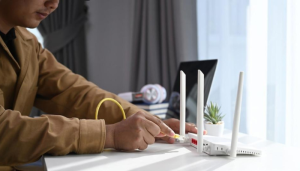
Setting up WiFi at home is easier than it sounds. Follow these simple steps carefully, and you’ll be connected in no time.
Start by connecting your modem to the internet line provided by your ISP. This could be a fiber cable, DSL line, or coaxial cable. Make sure the connection is firm and secure to avoid signal issues later.
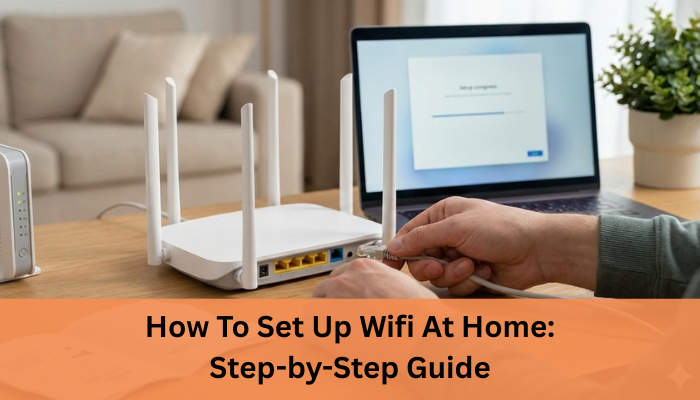
Next, use an Ethernet cable to connect the modem to your WiFi router. Plug one end into the modem’s LAN port and the other into the router’s WAN or Internet port. This allows the router to receive internet access from the modem.
Plug in the power adapters for both the modem and router. Turn them on and wait a few minutes. Indicator lights should stabilize this usually means the connection is active. Refer to the router manual if lights blink unusually.
Using a phone or laptop, connect to the router’s default WiFi network or use an Ethernet cable. Open a browser and enter the router’s IP address (like 192.168.1.1). Log in using the default credentials provided on the router label.
Change the WiFi name to something recognizable and set a strong password. This helps you identify your network easily and keeps unauthorized users out.
Select WPA2 or WPA3 encryption for better security. Avoid outdated security options, as they can make your network vulnerable.
Save all changes and reboot the router. Once it restarts, connect your devices using the new WiFi name and password your home WiFi is now ready to use.
Understanding How To Set Up Wifi At Home helps you avoid common setup mistakes and weak signal issues.
If you’re looking for a reliable provider, explore Pune’s top-rated internet service providers to choose a trusted connection for your home WiFi setup.
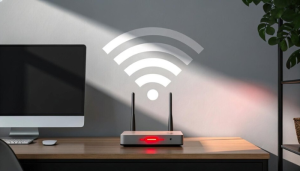
Router placement plays a huge role in how fast and stable your home WiFi feels. Even with a good internet plan, poor placement can lead to weak signals and dead zones. Here’s how to position your router for the best results.
Placing your WiFi router in a central location helps distribute the signal evenly across your home. When the router is kept in a corner or one room, the signal has to travel farther, which reduces speed and coverage in other areas. For apartments or houses, the middle of your living space usually works best.
WiFi signals can be blocked or weakened by thick walls, metal objects, and large appliances like refrigerators, microwaves, or TVs. Avoid placing your router near these items. Also, keep it away from cordless phones and Bluetooth devices, as they can cause interference and reduce performance.
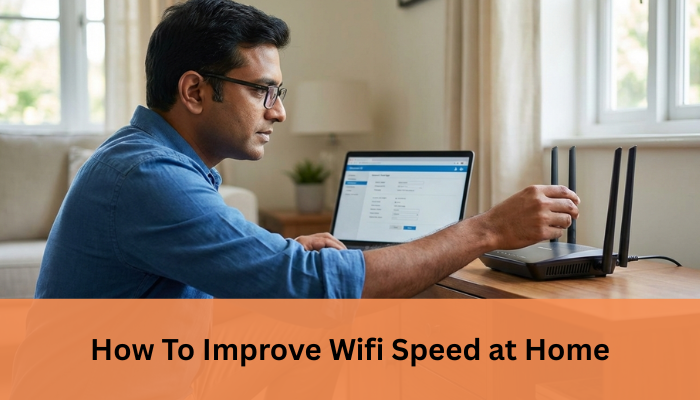
For optimal performance, place your router slightly elevated on a shelf or wall mount rather than on the floor. This helps the signal spread more freely. Keep it in an open area with good airflow to prevent overheating. If you live in a multi-floor home, placing the router on the upper floor often improves overall coverage.
Proper router placement alone can significantly improve your WiFi speed and stability without any additional equipment.
Once you know How To Set Up Wifi At Home, managing your home internet becomes easier and more reliable.
Most modern routers offer both 2.4 GHz and 5 GHz WiFi bands, but many users aren’t sure which one to use. Understanding the difference can help you get better speed, coverage, and overall performance at home.
The 2.4 GHz band provides wider coverage and can pass through walls more easily, but it offers slower speeds and is more prone to interference. Many household devices like microwaves and Bluetooth gadgets use this band, which can affect performance.
On the other hand, 5 GHz delivers much faster speeds and lower interference, making it ideal for streaming, gaming, and video calls. However, its range is shorter and it doesn’t penetrate walls as well as 2.4 GHz.
Use 2.4 GHz when you’re farther from the router or need a stable connection across larger areas of your home. It’s great for basic browsing, emails, and smart home devices.
Use 5 GHz when you’re close to the router and need high-speed performance for tasks like HD/4K streaming, online gaming, or work-from-home video calls.
A dual-band router lets you switch between both bands based on your needs. Some routers even automatically choose the best band for your device. This flexibility improves speed, reduces congestion, and ensures smoother performance for multiple users and devices at the same time.
Choosing the right band can instantly improve your WiFi experience without upgrading your internet plan.
As more devices come online, understanding why a smart home needs high-speed internet can help you plan a WiFi network that supports modern living without interruptions.
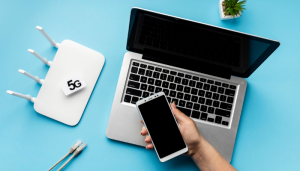
Once your WiFi is set up, the next step is connecting all your devices. The process is simple, but doing it correctly ensures stable connections and better performance across your home.
On smartphones, laptops, or smart TVs, open the WiFi settings and select your WiFi network name (SSID). Enter the password you created during setup and connect. Most devices will automatically remember the network, so you won’t need to re-enter the password next time. For the best performance, connect newer devices to the 5 GHz band if your router supports it.
Smart home devices like smart bulbs, speakers, cameras, and plugs usually connect through their companion mobile apps. Follow the in-app instructions to select your WiFi network and enter the password. Many smart devices work better on the 2.4 GHz band, so make sure that band is enabled on your router. Once connected, you can control these devices remotely through their apps.
For devices that need maximum speed and stability such as desktop computers, gaming consoles, or work-from-home setups using an Ethernet cable is the best option. Simply connect one end of the cable to the router and the other to your device. Wired connections reduce lag, avoid interference, and provide more consistent speeds compared to WiFi.
Connecting devices properly helps you get the most out of your home WiFi network.
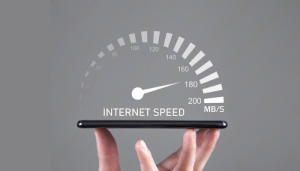
After setting up WiFi at home, testing your connection helps ensure everything is working as expected. It also allows you to spot weak signals or speed issues early and fix them before they become frustrating.
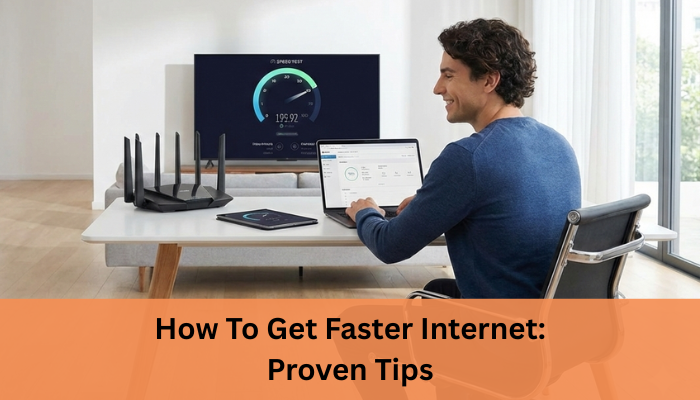
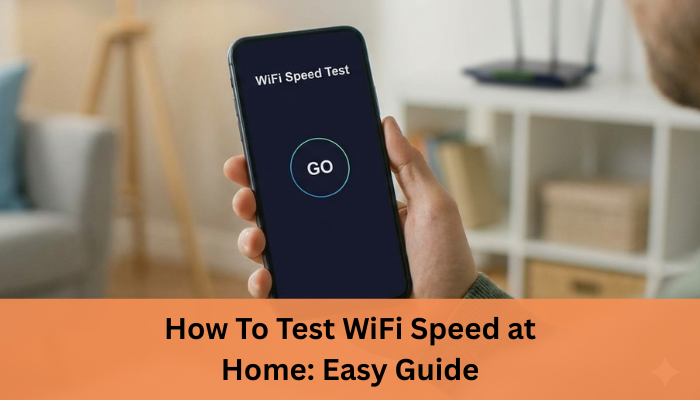
The easiest way to test your WiFi speed is by using an online speed test. Open a trusted tool like Google Speed Test, Ookla, or Fast.com and click “Start.” Within seconds, you’ll see your download speed, upload speed, and ping. For accurate results, run the test close to the router and make sure no other devices are heavily using the internet at the same time.
WiFi signal strength affects how stable your connection feels. You can check signal bars on your phone or laptop, or use WiFi analyzer apps to see signal quality in different rooms. If you notice weak signals in certain areas, it usually means your router placement needs improvement or you may need a range extender.
If your WiFi feels slow or keeps disconnecting, start by restarting your router. Next, check if too many devices are connected or if large downloads are running in the background. Switching to the 5 GHz band, changing WiFi channels, or moving closer to the router can also help. If problems continue, contact your ISP to check for line or service issues.
Regular testing helps keep your WiFi fast and reliable.

While many WiFi issues can be fixed at home, some problems require help from your internet service provider (ISP). Knowing when to contact them can save time and prevent unnecessary frustration.
If your internet connection frequently drops or you’re getting no signal at all, the issue may be with the external line or network. This can happen due to damaged cables, maintenance work, or service outages in your area. If restarting your modem and router doesn’t help, it’s best to contact your ISP so they can check and fix the line.
Sometimes your router may not be fully compatible with your internet connection, especially after upgrading your plan. Older routers may struggle with higher speeds or newer technologies. If you notice consistent speed issues despite correct setup, your ISP can confirm whether your router is suitable or recommend a compatible one.
If your internet usage has increased such as more devices, work-from-home needs, or high-quality streaming it may be time to upgrade. Fiber internet offers faster speeds, lower latency, and better reliability compared to traditional broadband. Your ISP can guide you on availability and help with a smooth upgrade.
Reaching out to your ISP at the right time ensures your home WiFi stays fast and reliable.
Setting up WiFi at home doesn’t have to be complicated. Once you have the right internet connection, a good router, and follow the correct steps from connecting the modem to securing your network you can enjoy fast and reliable WiFi in every corner of your home. Proper router placement, choosing the right WiFi band, and connecting devices correctly all play a big role in getting the best performance.
To keep your home WiFi stable, remember to restart your router occasionally, update firmware when available, and avoid placing the router near walls or electronic appliances. If your internet usage grows due to work-from-home, streaming, or smart devices, upgrading your router or plan can make a noticeable difference.
This guide on How To Set Up Wifi At Home is designed to make the process simple, even for non-technical users.
At Internet Express, we help homeowners across India get hassle-free, high-speed internet with reliable broadband and fiber solutions. From new WiFi installations to upgrades and expert support, our team ensures you stay connected without interruptions.
If you’re planning to set up WiFi at home or want faster, more dependable internet, contact Internet Express today. Let us help you choose the right plan and enjoy a smooth, secure home WiFi experience.