Best WiFi Connection in Bhosari – Internet Express 2026
June 15, 2026
Ip Camera Vs Analog Camera: Which Is Better? 2026
July 17, 2026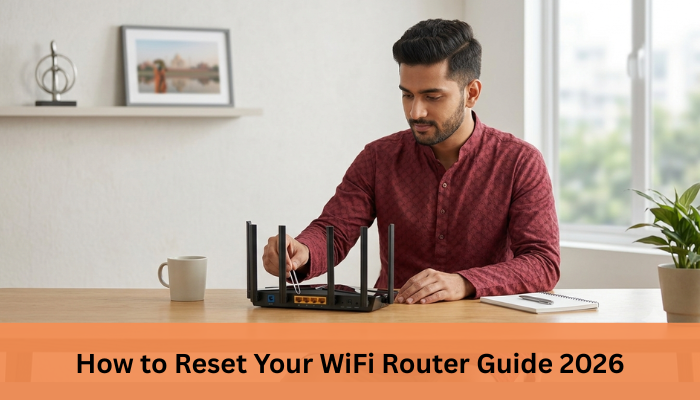
Slow internet, constant WiFi disconnections, or devices refusing to connect can quickly become frustrating, especially when you rely on the internet for work, streaming, gaming, or daily communication.
If you are searching for “How to Reset Your WiFi Router,” the good news is that resetting your router is often one of the fastest and easiest ways to fix common internet problems and improve network performance.
Many users experience internet issues because routers continuously run for long periods without restarting or because of outdated network settings.
In fact, network troubleshooting experts often recommend restarting or resetting routers as one of the first solutions for connectivity problems.
Whether your internet feels slow, unstable, or completely disconnected, a simple router reset can often restore normal performance within minutes.
From personal experience, I’ve noticed that many people immediately assume their internet provider is the problem when, in reality, a quick router reset solves the issue.
Understanding the difference between restarting and factory resetting is also important because both methods work differently.
In this guide, you’ll learn how to reset your WiFi router properly, when you should do it, common mistakes to avoid, and how to reconnect your internet afterward.
Let’s get started and fix your WiFi connection step by step.
What Does Resetting A WiFi Router Mean?
Resetting a WiFi router means restarting or restoring the router to fix internet connectivity problems, improve performance, or remove incorrect network settings.
Many users confuse restarting and resetting, but both actions work differently and are used for different situations.
Difference Between Restart And Reset
A router restart simply turns the device off and back on without deleting any settings. It is useful for fixing temporary internet issues such as slow speed or minor WiFi interruptions.
A factory reset, however, restores the router to its original default settings. This removes saved WiFi names, passwords, and custom configurations.
Here’s the basic difference:
- Restart = Temporary refresh
- Reset = Complete settings removal
When You Should Reset Your Router
You should reset your WiFi router when normal troubleshooting steps do not solve the problem. A reset is commonly recommended for persistent network or configuration issues.
Common situations include:
- Forgotten WiFi password
- Frequent internet disconnections
- Devices not connecting properly
- Router login problems
- Incorrect network settings
For simple speed issues, restarting the router is usually enough.
What Happens After A Router Reset
After a factory reset, the router returns to its default configuration. This means users must set up the WiFi network again, including the network name and password.
After resetting, you may need to:
- Reconfigure internet settings
- Reconnect all devices
- Update WiFi passwords
- Log in using default router credentials
Although resetting may sound complicated, it is often one of the most effective ways to fix router-related internet problems.
Understanding when and how to use it properly can help maintain stable and reliable WiFi connectivity.
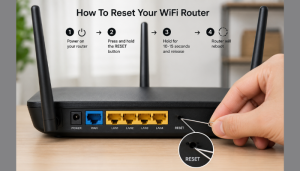
How To Reset Your WiFi Router
Resetting your WiFi router is one of the easiest ways to fix internet connectivity problems, slow speeds, or device connection issues.
Depending on the problem, you can either restart the router for a quick refresh or perform a factory reset to restore default settings.
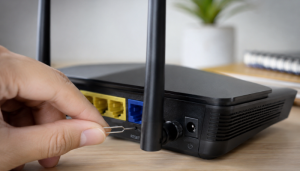
Locate The Reset Button
Most routers have a small reset button located at the back or bottom of the device. Since the button is usually tiny and recessed, you may need a paper clip or pin to press it properly.
Before resetting, make sure the router is powered on.
Steps To Restart Your Router
A restart is the safest and quickest troubleshooting step for minor internet issues. It refreshes the network without deleting any settings.
Follow these simple steps:
- Turn off the router using the power button
- Unplug the power cable
- Wait for 30 to 60 seconds
- Plug the router back in
- Turn the router on and wait for reconnecting
This process often helps improve internet speed and connection stability.
Steps To Factory Reset Your Router
A factory reset removes all saved configurations and restores the router to default settings.
To perform a factory reset:
- Locate the reset button
- Press and hold the button using a pin
- Wait until router lights start blinking
- Release the button and allow the router to restart
After resetting, you will need to set up the WiFi network again.
How Long To Hold The Reset Button
Most routers require users to hold the reset button for around 10 to 15 seconds. However, the exact timing may vary depending on the router brand and model.
Always avoid unplugging the router during the reset process, as it may interrupt the setup or cause configuration problems.
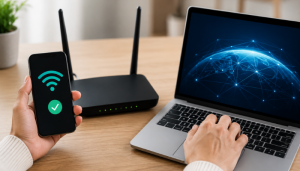
How To Reconnect Internet After Reset
After resetting your WiFi router, the internet connection usually needs to be configured again.
Since a factory reset removes saved network settings, users must reconnect devices and restore the WiFi setup properly to get the internet working again.
Set Up WiFi Name And Password
Once the router restarts, log in to the router settings page using the default username and password provided by the manufacturer or internet service provider.
After logging in, you should:
- Create a new WiFi network name (SSID)
- Set a strong WiFi password
- Configure security settings such as WPA2 or WPA3
Using a strong password helps protect your network from unauthorized access.
Reconnect Devices
After setting up the WiFi network, reconnect all your devices using the new password. Devices such as smartphones, laptops, smart TVs, and security cameras may need to reconnect manually after a reset.
If a device does not connect immediately, try restarting the device once.
After a factory reset, you may also find our How to Set Up WiFi at Home guide useful for configuring your router correctly. performance.
Check Internet Connectivity
After reconnecting devices, verify whether the internet is working properly. Open a website or run a quick speed test to confirm stable connectivity.
If the internet is still not working:
- Restart the router again
- Check broadband or fiber cable connections
- Contact your internet service provider for assistance
Properly configuring the router after a reset helps restore smooth and stable internet
After completing the reset process, it’s a good idea to How to Test WiFi Speed to confirm your connection is performing as expected.
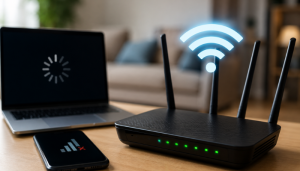
Common Problems Fixed By Resetting A Router
Knowing How to reset your wifi router can help you quickly resolve common issues such as slow internet, frequent disconnections, and network errors.
Resetting a router is one of the most effective troubleshooting methods for fixing common internet and WiFi issues.
Over time, routers may experience temporary glitches, overloaded memory, or incorrect settings that affect network performance.
A simple restart or factory reset can often restore stable connectivity within minutes.
Slow Internet Speeds
Routers running continuously for long periods may slow down because of network congestion, background processes, or overloaded memory.
Restarting the router refreshes the connection and can improve internet speed.
A router reset may help fix:
- Slow browsing speeds
- Video buffering issues
- Lag during online gaming
- Delayed file downloads
WiFi Connection Drops
If you’re experiencing connectivity problems, learning How to reset your wifi router is one of the first troubleshooting steps you should try.
Frequent WiFi disconnections are another common problem users face. This can happen because of signal interference, outdated settings, or temporary router errors.
Resetting the router often helps stabilize the network and improve connection reliability for all connected devices.
Devices Not Connecting
Sometimes smartphones, laptops, smart TVs, or other devices fail to connect to the WiFi network properly. This may happen because of IP conflicts, incorrect settings, or authentication issues.
Restarting or resetting the router can refresh network configurations and allow devices to reconnect normally.
Router Configuration Errors
Incorrect router settings can also create internet connectivity problems. Users may accidentally change DNS settings, security configurations, or network preferences that affect internet access.
A factory reset restores the router to default settings, helping remove configuration errors and network conflicts.
Although resetting a router can solve many common internet issues, users should remember that factory resets erase saved WiFi settings and passwords.
Properly setting up the router again is important for restoring smooth and secure internet connectivity.
If restarting or resetting doesn’t solve the problem, our guide on Why Is My Internet Slow explains other common causes and how to fix them.
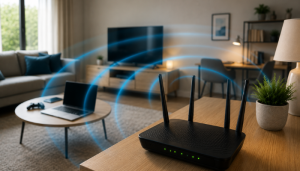
Tips To Improve WiFi Performance
A slow or unstable WiFi connection can be frustrating, especially when you’re working, streaming, or attending online meetings.
The good news is that a few simple adjustments can noticeably improve your internet performance without needing any technical expertise. Let’s look at some practical tips you can apply right away.
Place Router Properly
Your router’s placement plays a big role in signal strength and coverage.
- Keep the router in a central location of your home or office
- Place it at a higher position, like on a shelf, instead of the floor
- Avoid keeping it near thick walls, metal objects, or electronic appliances
- Try to keep it in an open space for better signal distribution
Even small changes in placement can reduce dead zones and improve speed in different rooms.
Update Router Firmware
Outdated firmware can slow down your router or cause connectivity issues.
- Check your router settings regularly for firmware updates
- Install updates provided by the manufacturer
- Updates often include performance improvements and security fixes
Keeping your router updated ensures it runs smoothly and efficiently.
Secure Your WiFi Network
An unsecured network can be misused by unauthorized users, slowing down your speed.
- Set a strong password using a mix of letters, numbers, and symbols
- Use WPA2 or WPA3 encryption for better security
- Regularly change your WiFi password if needed
- Avoid sharing your network openly without control
A secure network ensures your bandwidth is used only by trusted devices.
Reduce Network Congestion
Too many connected devices can overload your WiFi.
- Disconnect devices that are not in use
- Limit heavy downloads or streaming during peak hours
- Prioritize important devices through router settings (QoS if available)
- Upgrade your plan if multiple users are consistently online
Managing connected devices helps maintain stable speed and better performance throughout the day.
Understanding How to reset your wifi router correctly ensures your device returns to its default settings without causing unnecessary configuration issues.
If your internet is still slow even after resetting your router, read our guide on How to Improve WiFi Speed for more practical ways to boost your network performance.

When To Contact Your ISP
Sometimes, even after trying basic troubleshooting steps, your internet may still not work properly.
In such cases, it’s best to contact your Internet Service Provider (ISP) so the issue can be checked at the network level.
Internet Still Not Working
If your internet is completely down despite restarting your router and checking cables, it may be a bigger issue.
- Check if the outage is only in your area or across multiple devices
- Restart your router and wait a few minutes
- If still no connection, contact your ISP support team
- They can verify line status and resolve backend issues
Fiber Or Broadband Issues
Physical line or infrastructure problems often need technical assistance.
- Damaged fiber cables or loose connections can affect service
- Slow speeds despite a good plan may indicate line faults
- ISP technicians may need to inspect or repair the connection
- Avoid attempting to fix fiber cables yourself
Frequent Connectivity Problems
If your connection keeps dropping regularly, it’s a sign something is not right.
- Intermittent disconnections may indicate signal instability
- Router replacement or line testing might be required
- ISP can check signal strength and network health
- Continuous issues should always be reported promptly
Reaching out to your ISP ensures faster diagnosis and a more stable internet experience.
Every internet user should know How to reset your wifi router, as it can restore stable performance when basic troubleshooting doesn’t work.
If your router is old and continues to cause problems, our Best Router for Home guide can help you choose a better option for reliable performance.
Conclusion
A stable and fast internet connection has become a basic need for both homes and businesses.
From online meetings and streaming to daily work and communication, everything depends on reliable connectivity.
Small steps like restarting your router, optimizing settings, or checking your network setup can solve many common issues.
This guide on How to reset your wifi router explains the safest and most effective way to reset your device and get your internet connection working again.
However, when problems continue, having a dependable ISP makes all the difference.
That’s where Internet Express comes in. We are committed to delivering high-speed, uninterrupted internet services designed to meet modern digital demands.
Whether you need a home broadband connection or a robust enterprise-grade leased line, we ensure consistent performance, strong uptime, and responsive support.
Our services include managed IT solutions, fiber infrastructure, NOC services, and secure networking solutions across India built to keep you connected without interruptions.
We believe in providing not just internet, but a smooth and reliable digital experience that supports your work, entertainment, and business growth.
If you are facing frequent internet issues or planning to upgrade your connection, we are here to help.
Get in touch with Internet Express today and experience fast, stable, and worry-free connectivity built for your needs.